
Metis
Updated: October 12, 2026
Combine SiliconFlow's fast, OpenAI-compatible model inference with the Metis desktop app to use SiliconFlow models anywhere.
About Metis
Metis is an open-source (MIT) coding agent that spans the terminal and the desktop. With the same model, it raises coding completion rates through workflows and verification: it scores 82.02% on Terminal-Bench 2.1 (DeepSeek V4 Flash, 89 tasks), about +14.6% over OpenCode (67.42%) with the same model and budget.
You can use it to:
- Write and modify code — plan, implement, and review in one pass, with fewer half-finished replies
- Remember project experience — conclusions and preferences persist across sessions
- Use SiliconFlow right in the desktop app — SiliconFlow (CN) is built in: paste your API Key and pick a model
Website and console: SiliconFlow · Cloud Console
1. Install Metis
The desktop app is recommended (runtime bundled, no Node.js required):
- macOS (Apple Silicon): download
Metis-*-macos-arm64.dmgfrom GitHub Releases and drag Metis.app into Applications. - Windows (x64): download
Metis-*-win-x64-setup.exeor.zip.
2. Get Your SiliconFlow API Key
- Open SiliconFlow and sign up / log in.
- Complete real-name verification.
- Go to the API Keys page.
- Create a new key and store it safely.
💡 Signing up and completing real-name verification on the website usually grants trial credits usable for models on the platform.
3. Configure SiliconFlow in Metis
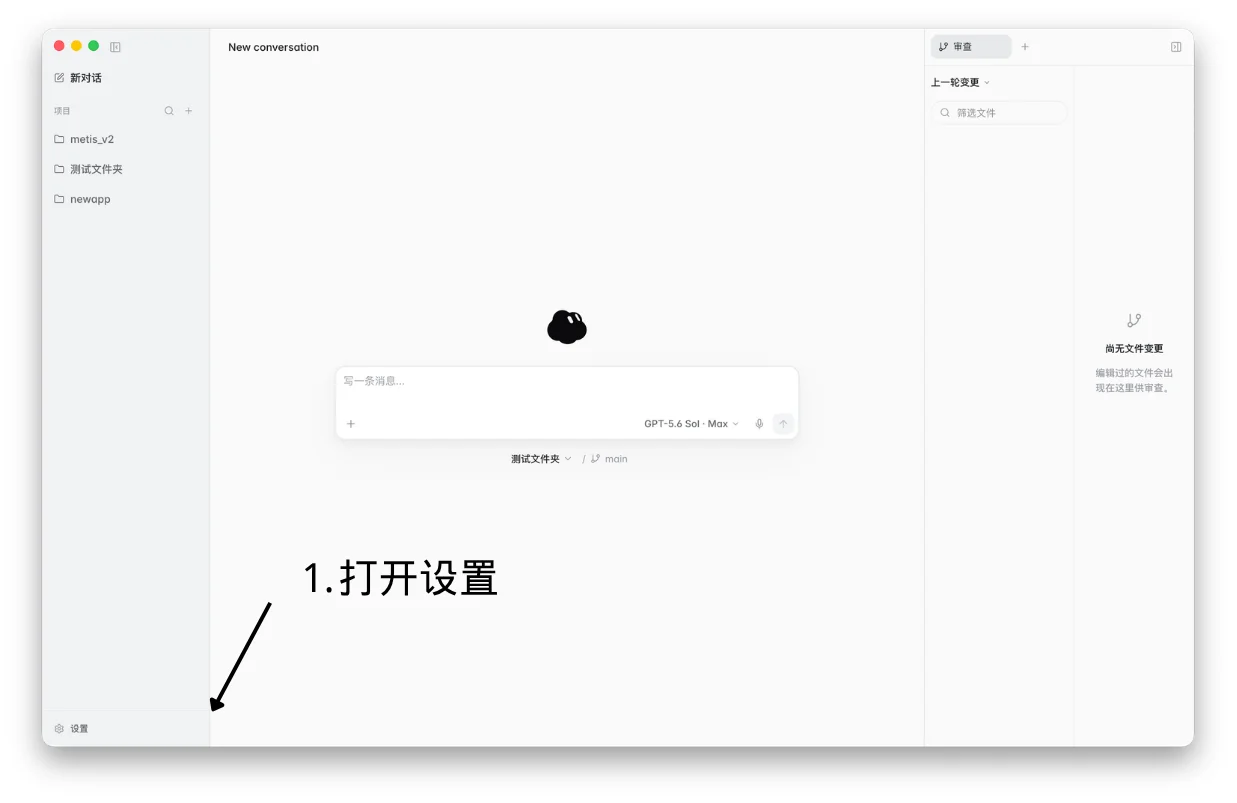
- Open Metis Desktop and click Settings in the bottom-left corner.
-
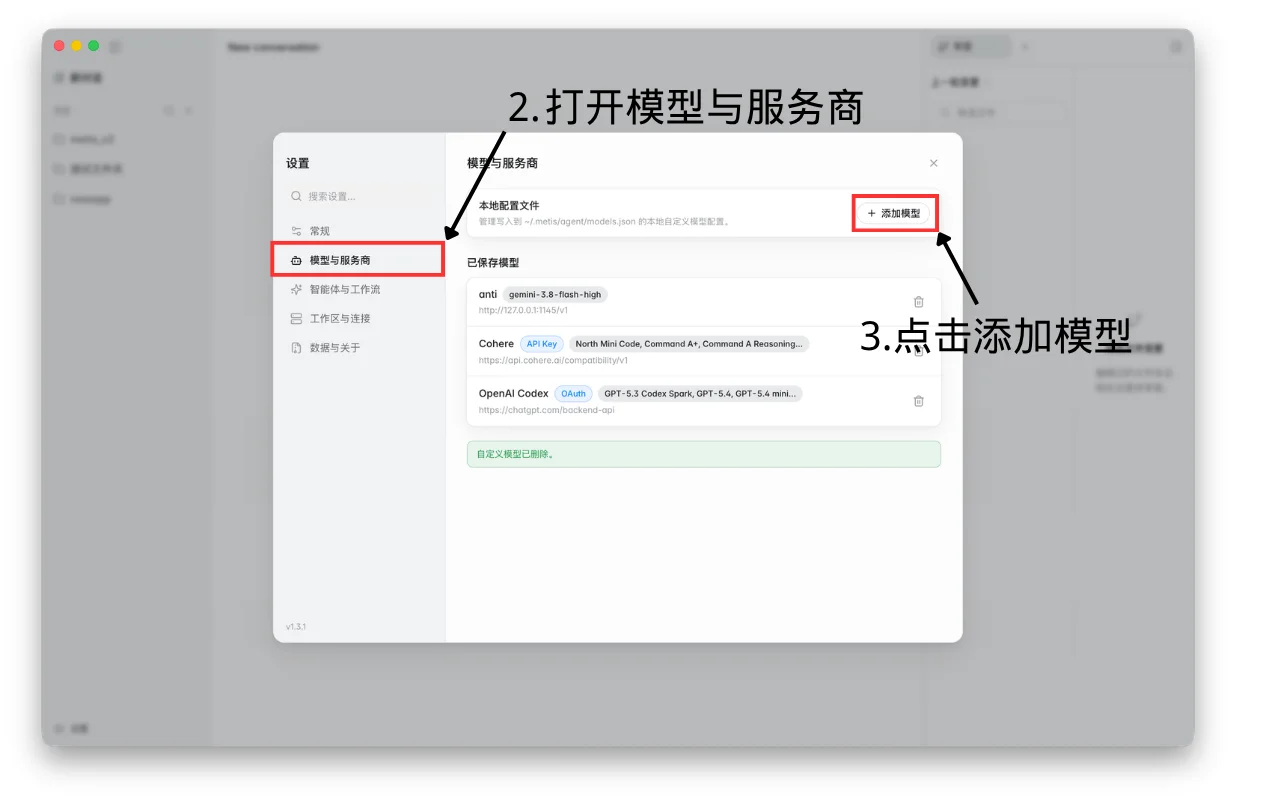
In Settings, open "Models & Providers".
-
Click "Add Model".
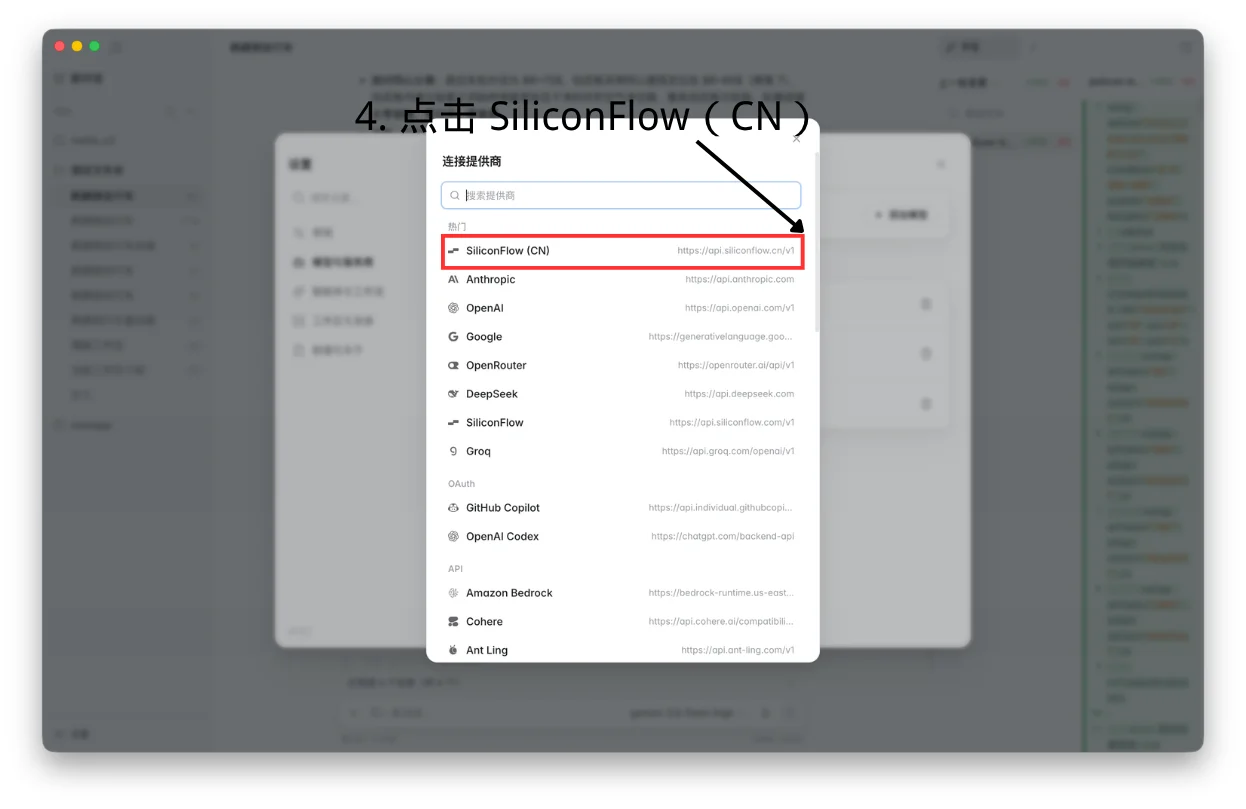
- Choose SiliconFlow (CN) in the connection wizard.
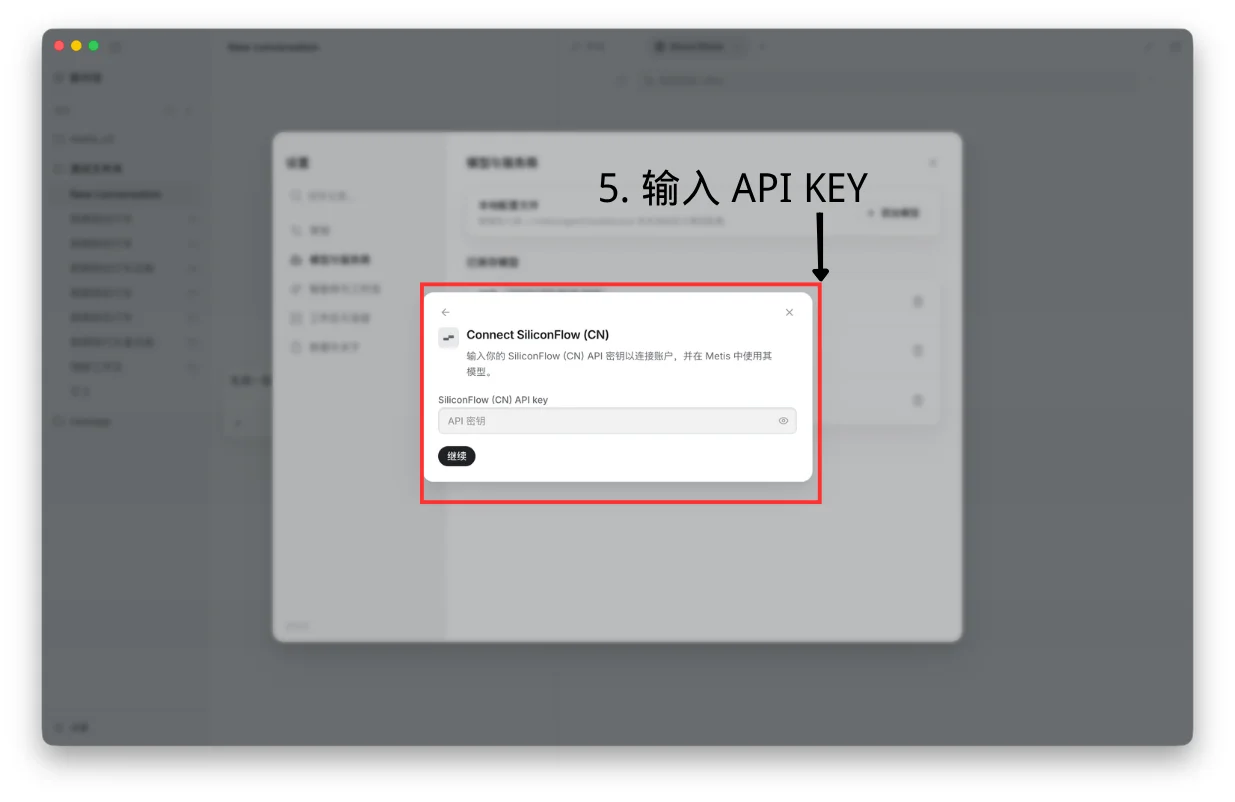
- Paste the API Key you obtained in the previous step and click Continue.
- In the model step you can "Auto-fetch models", or fill in model IDs manually; you can also leave it empty and submit directly to use only the built-in catalog.
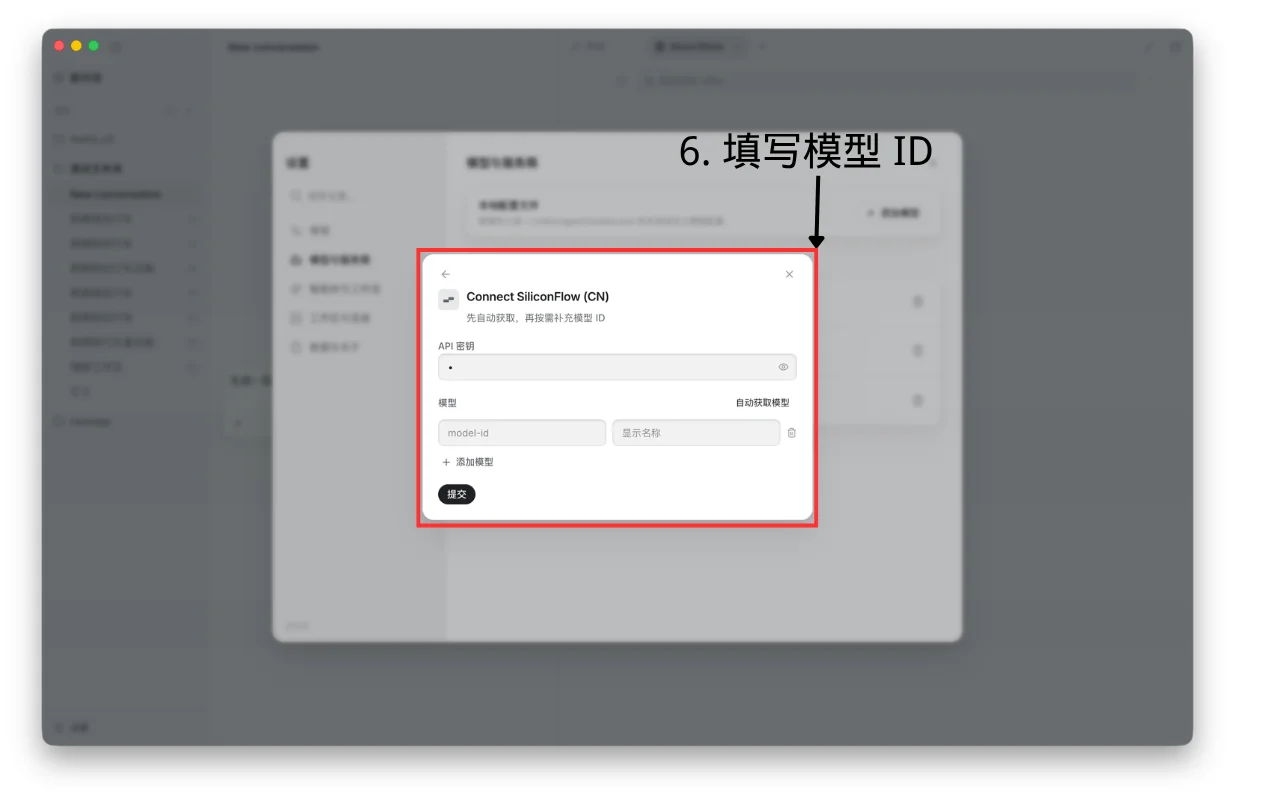
Pick a model in the chat page's model dropdown, for example deepseek-ai/DeepSeek-V4-Flash.
On first launch you can also select SiliconFlow (CN) in the API Key step of the onboarding wizard and enter your key there.
Once configured, send "Hello" in the chat box or ask it to introduce the current project; a normal reply means the connection works.
4. Start Using
Default recommended model:
deepseek-ai/DeepSeek-V4-Flash
Popular options:
| Model | Best for |
|---|---|
deepseek-ai/DeepSeek-V4-Flash | Everyday chat and coding (default) |
deepseek-ai/DeepSeek-V4-Pro | More complex reasoning and long tasks |
Pro/moonshotai/Kimi-K2.6 | Kimi for coding |
zai-org/GLM-5.2 | GLM coding / Agent |
Qwen/Qwen3-Coder-480B-A35B-Instruct | Qwen Coder |
For the complete list, see Models. To switch models: use the model selector at the top of the chat page.